
AI Background Generator: Place Your Product in Any Scene
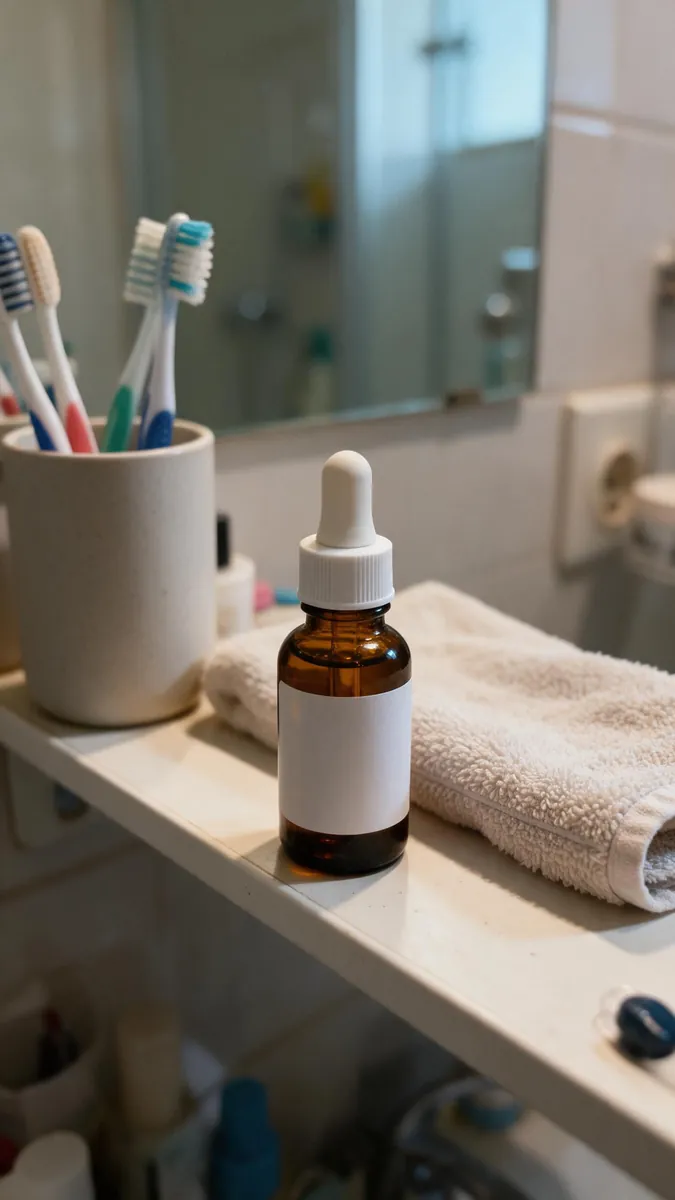
A photo on a kitchen table does not sell like a shot in a stylish interior. Describe the backdrop you want: a bright studio, a marble countertop, greenery or a cozy room. The AI builds the scene, matches shadow and light to your product and keeps the item itself undistorted.
Change the background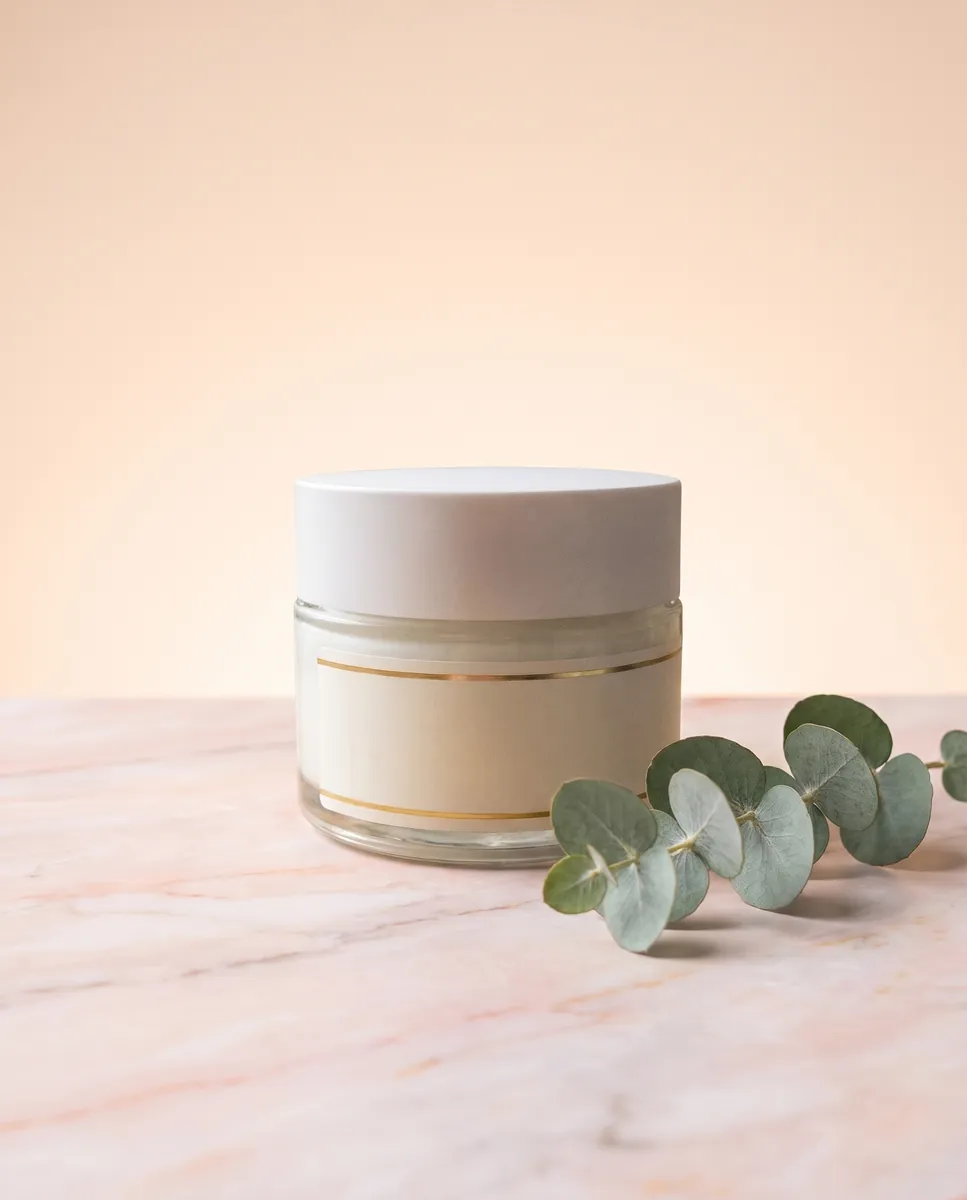
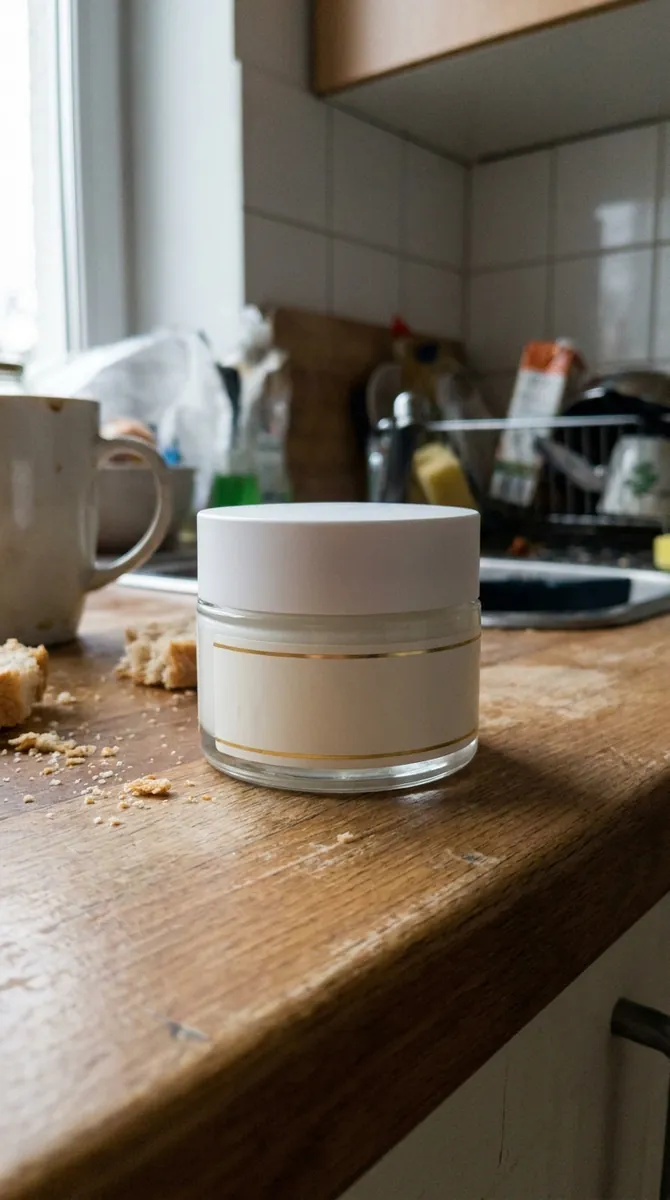 BeforeAfter
How it works
Upload a product photo
Any clear shot works, the original background does not matter.
Describe the scene
For example, a bright studio with a soft shadow or a wooden table by a window.
Choose the best version
Compare results and keep the one that fits your brand.
BeforeAfterChange a photo background with one sentence
You do not have to search stock sites or resize anything. Write where the product should be and the AI builds the scene. The item keeps its shape and color while the surroundings adapt, with shadows, reflections and depth. The result looks like a photo taken on location, not a cutout pasted on top. It is especially handy for photos taken at home: clutter behind the product disappears and it looks studio shot.
Change the background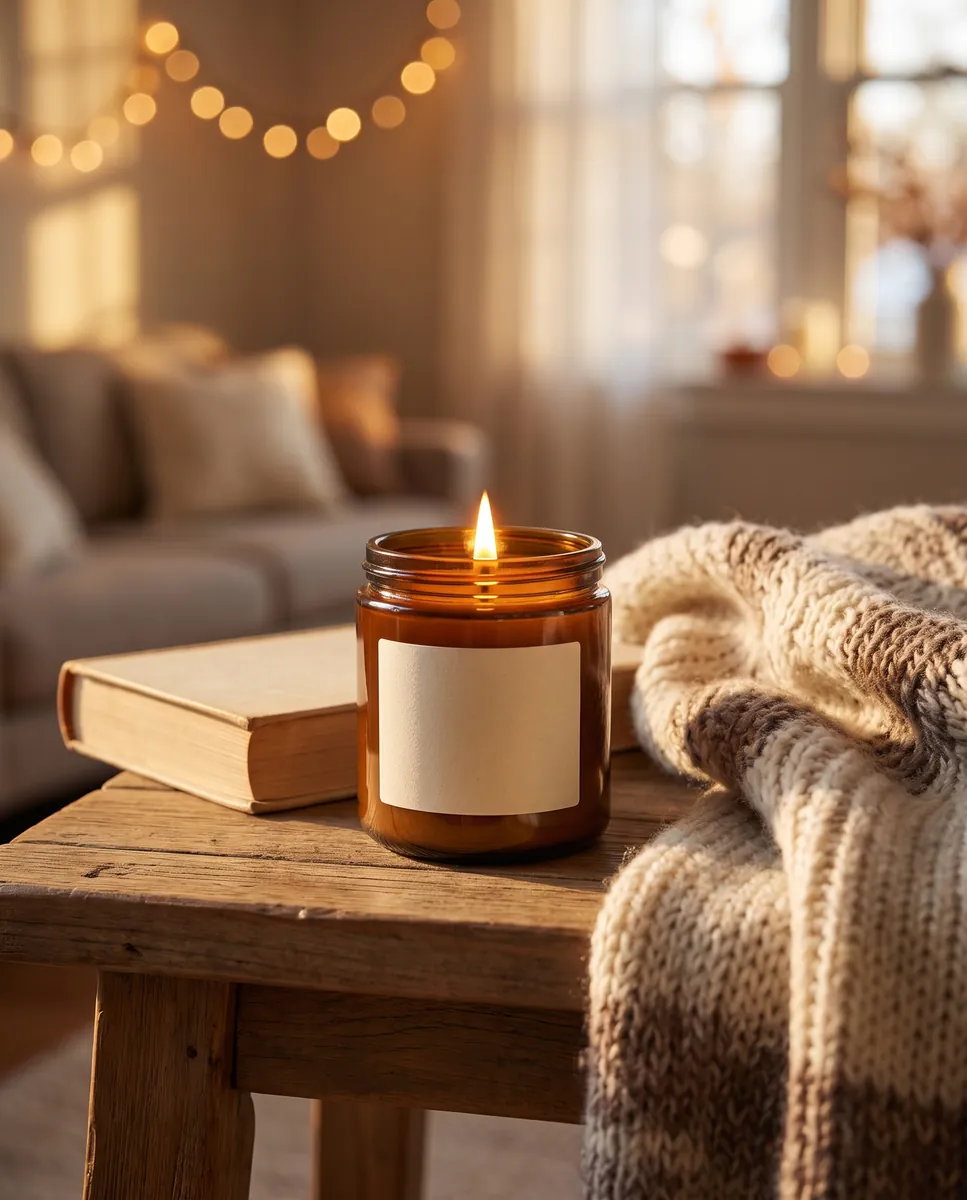
Product photo backgrounds that match your brand
Minimal for skincare, warm light for candles, fresh greenery for flowers, marble for jewelry. A backdrop supports your brand image, so choose one that suits your audience. Try several options and keep the one that fits best with the rest of your social media. Seasonal sale coming? Swap the decor for winter coziness or summer greenery, all from the same source photo.
Change the background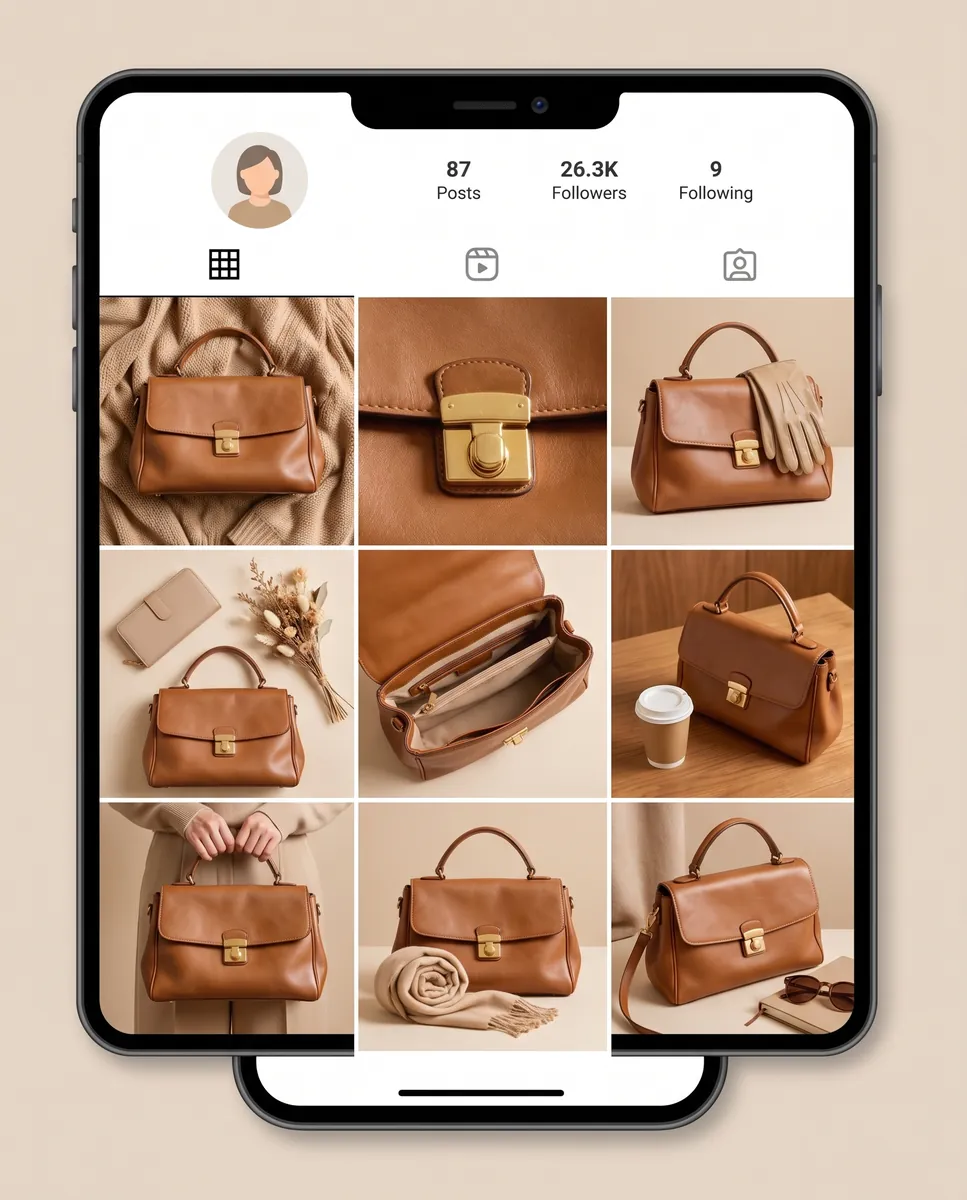
One product, many scenes for your posts
To keep a feed from looking repetitive, show one product in different settings: morning, evening, summer, a gift. That gives you material for a week of posts without any new shoots. The finished frames can go straight into publications. Each scene arrives as a separate option, so you compare several ideas and pick the best instead of settling for the first. build a post from your shots
Change the background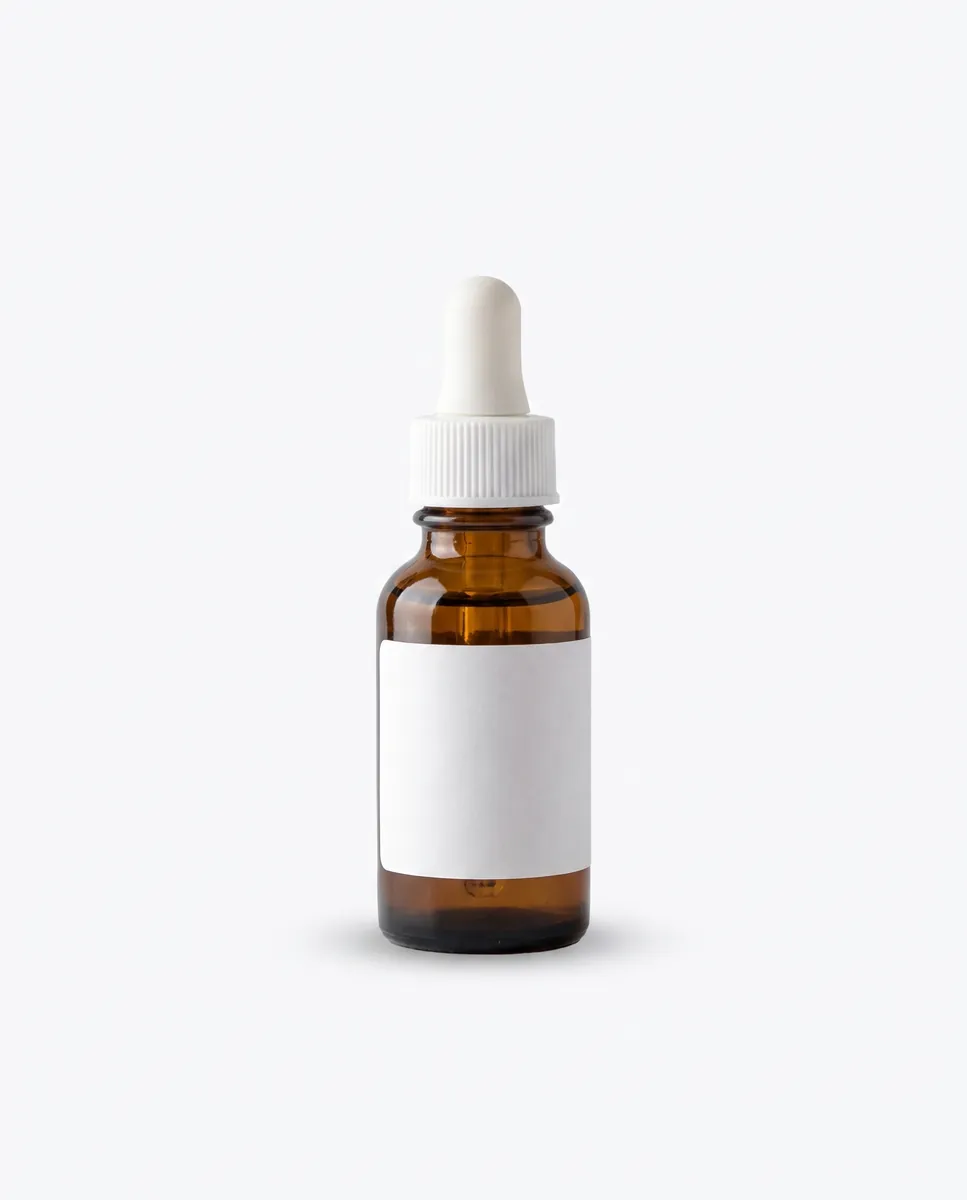
 BeforeAfter
Cut out first, then add the scene
If your original photo has a cluttered background, start by removing it. The AI then reads the edges of the product more precisely and places it into the new scene more cleanly. And if you only need a white background for a marketplace, that single step is enough. For tricky items such as clear glass, a clean start noticeably improves quality and makes the result more convincing. remove the old background
Change the backgroundQuestions & answers
What is an AI background generator?
It is a tool that creates a new environment for your product from a text description. The item stays the same, only the scene changes.
How do I change a photo background in Wraxa?
1. Upload your product photo.
2. Describe the scene you want.
3. Start generation.
4. Compare versions and save the best.
Will the backgrounds work for Amazon, Etsy and Shopify?
Main images on Amazon usually need a white background, while secondary images can use scenes. Rules differ by marketplace and category, so double-check them.
Will the product look natural in the scene?
Shadow, light and perspective adapt to the scene. If a shadow looks wrong, adjust it with text, for example a soft shadow on the right.
Can I return to the old background?
Yes. Every version is kept in history and you can go back to any of them for free.
Why is this better than stock backgrounds?
The scene is generated for your product and its lighting, so you do not have to match sizes or paint shadows by hand.
How much does Wraxa Visuals cost?
One-time access is $7 for 25 tokens: a single payment, no subscription or auto-renewal, and the tokens never expire. The Visuals subscription is $20 a month for 100 tokens every month, and you can cancel anytime. There is no free trial.
What is the difference between one-time access and the subscription?
One-time access is for trying it out: your 25 tokens stay with you until you use them. The subscription is for regular content: 100 tokens arrive every month, and the unused monthly allowance resets on renewal. Purchased tokens add up with the subscription.
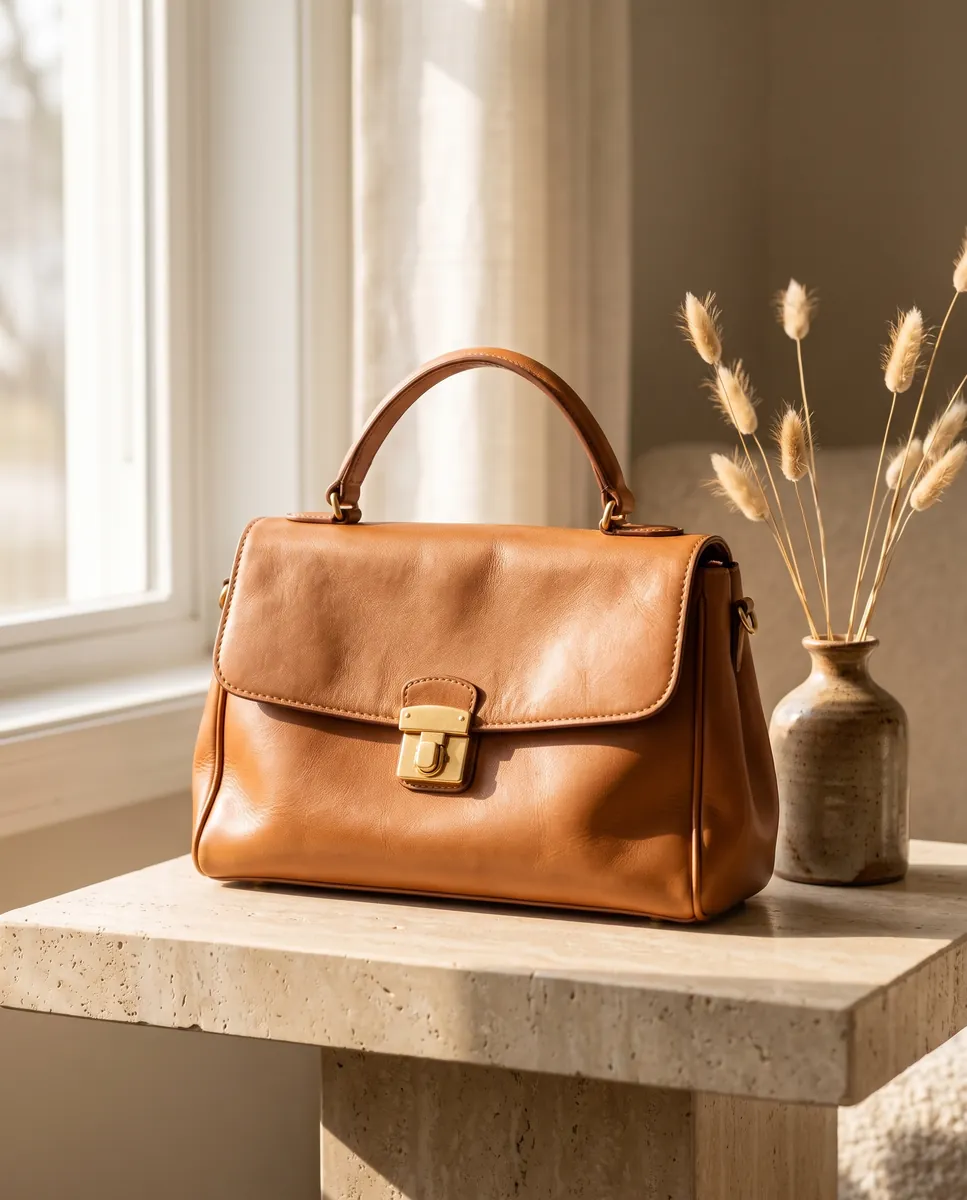
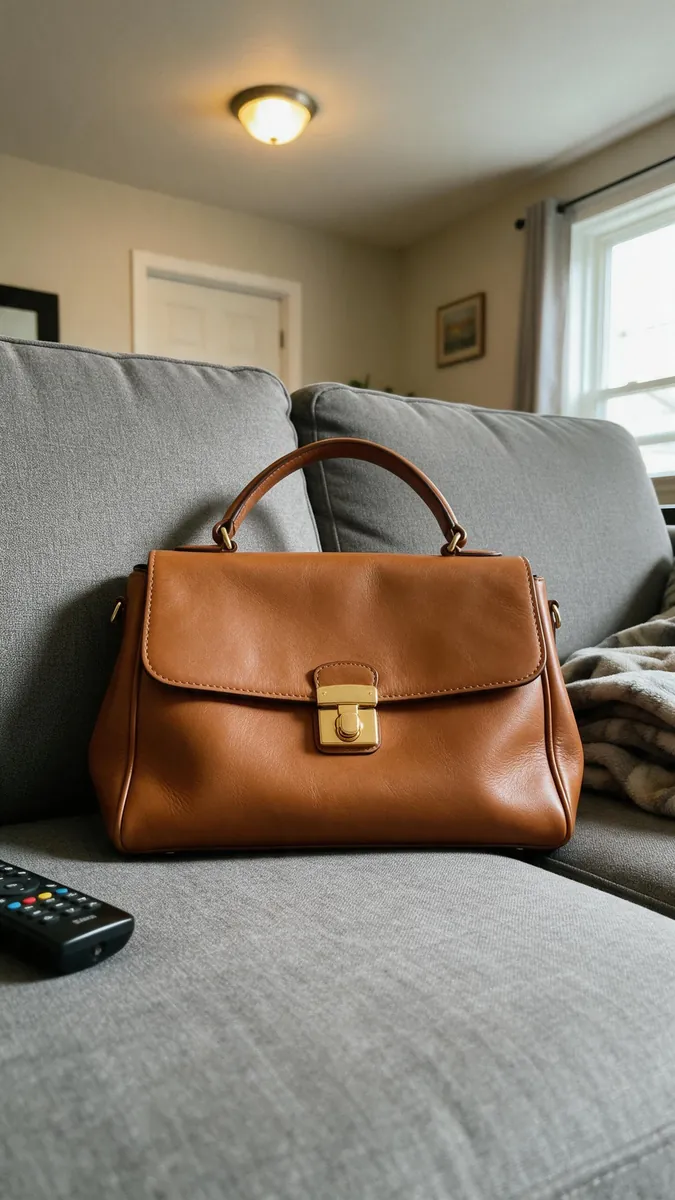
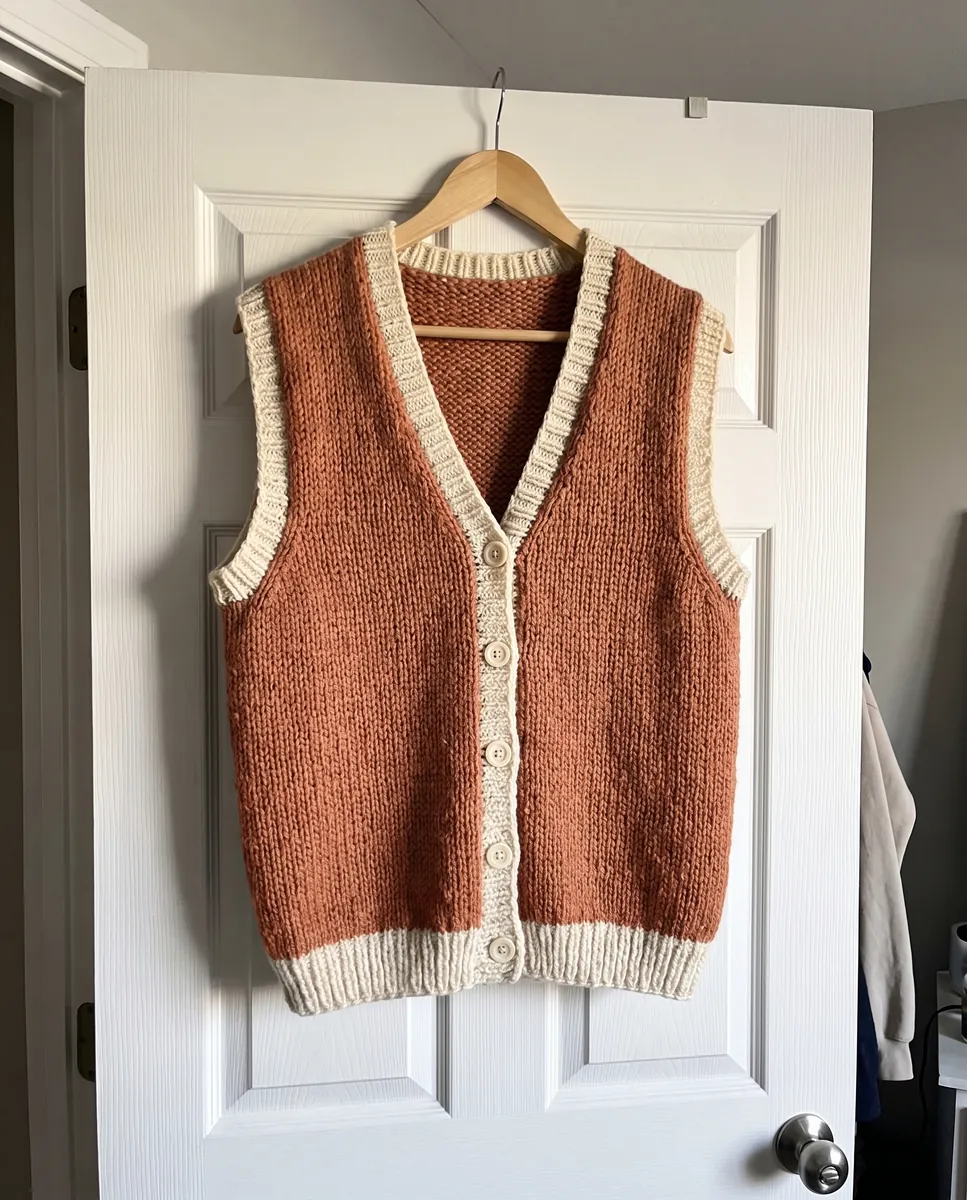
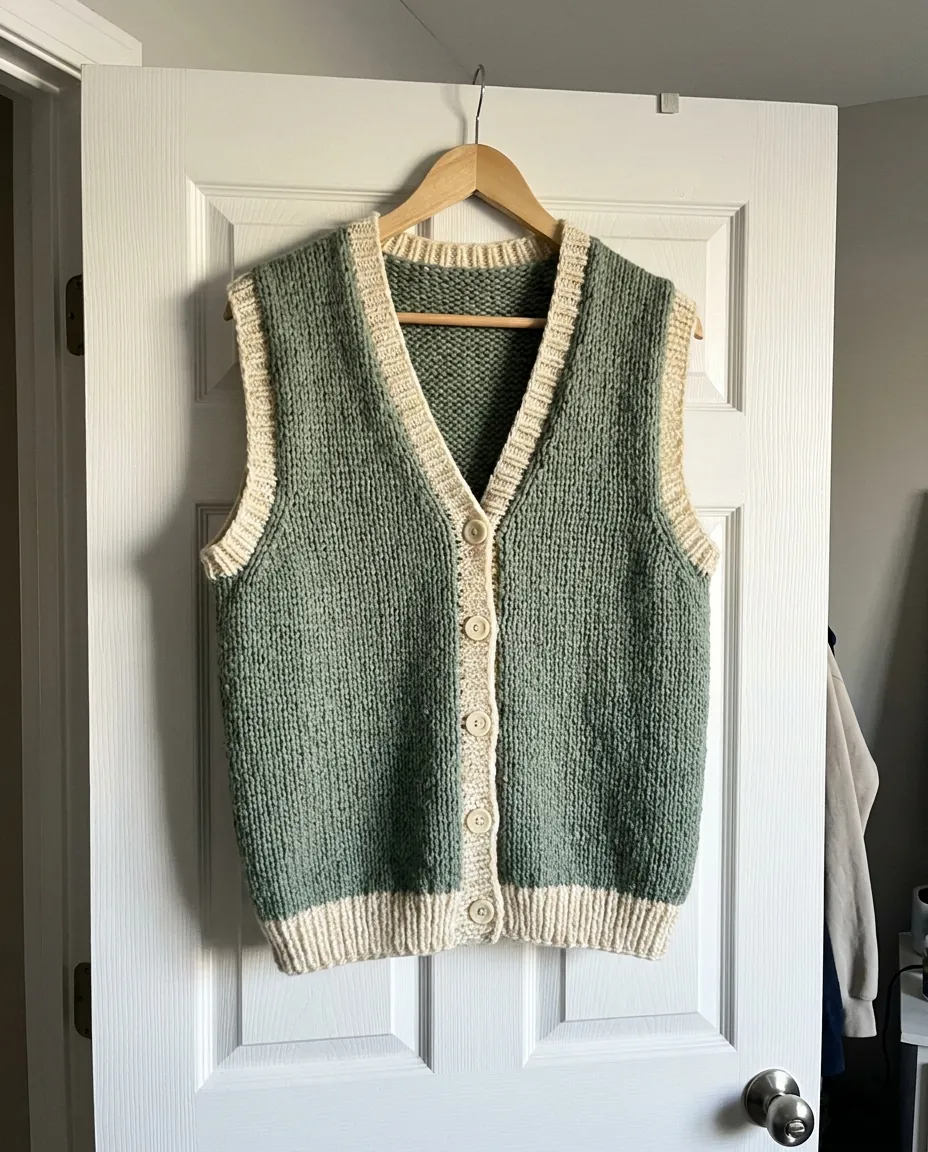
Upload your first photo and see how your product can look. One-time access from $7, no subscription required.
Change the background